

We at Ninja Softs, offering FREE SSL with all our Windows server hosting plans. To enable your SSL please follow below steps.
- Login to your Plesk control panel. You have received your login credentials in “New Account information” email at the time of account setup with Ninja Softs.
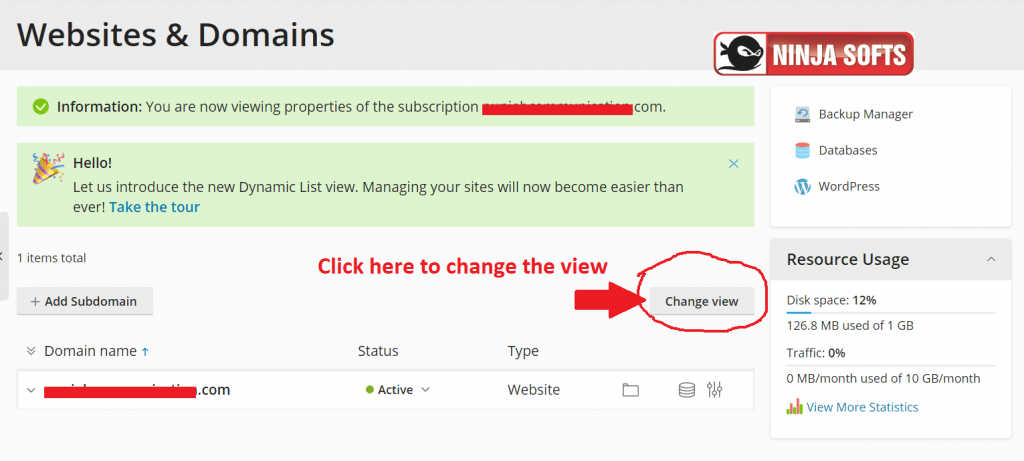
- Change view of control panel to Active List. (if needed)
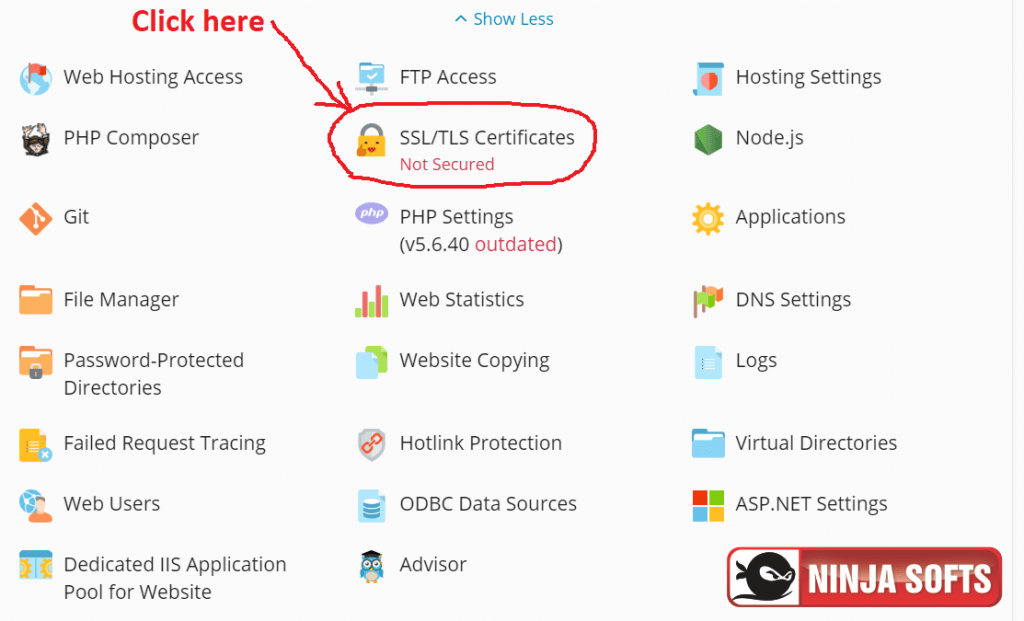
- Click on “SSL/TLS Certificates”.
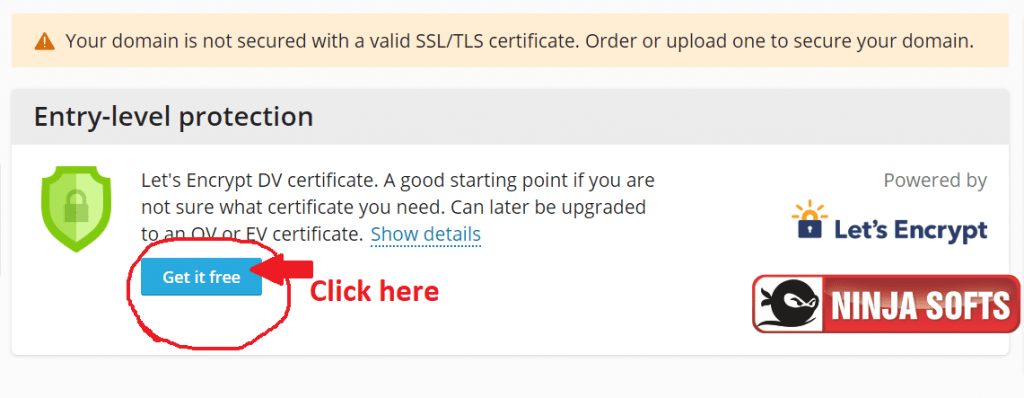
- Click on “Get it Free” as in the image.
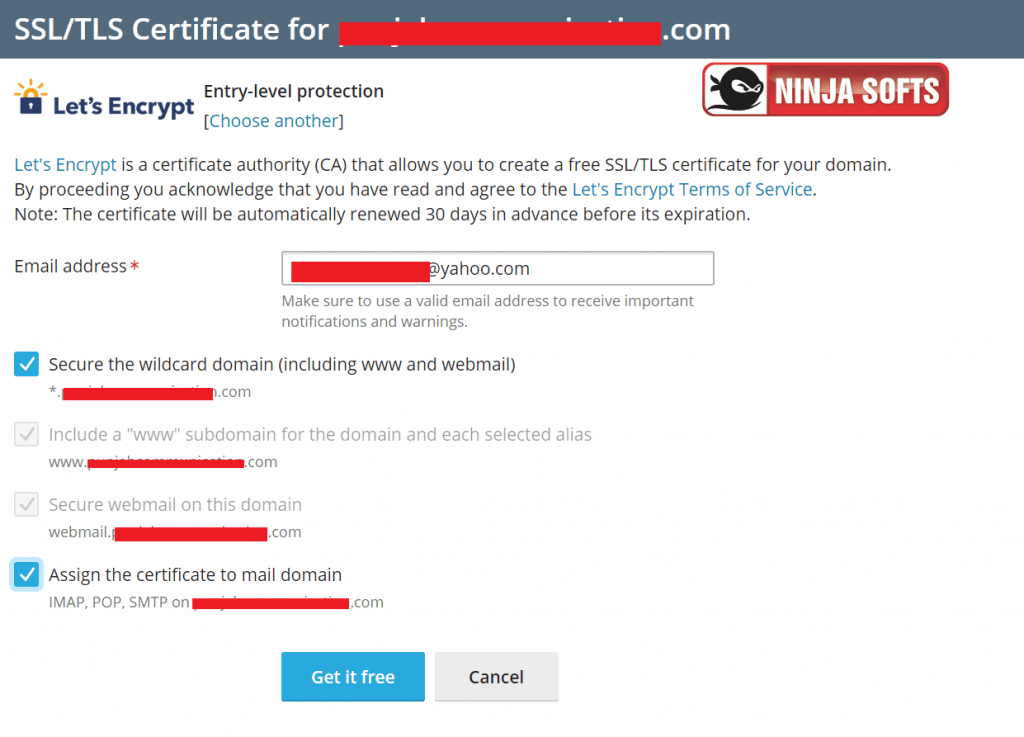
- A new pop up will open. Check all checkboxes and click on “Get it Free”.
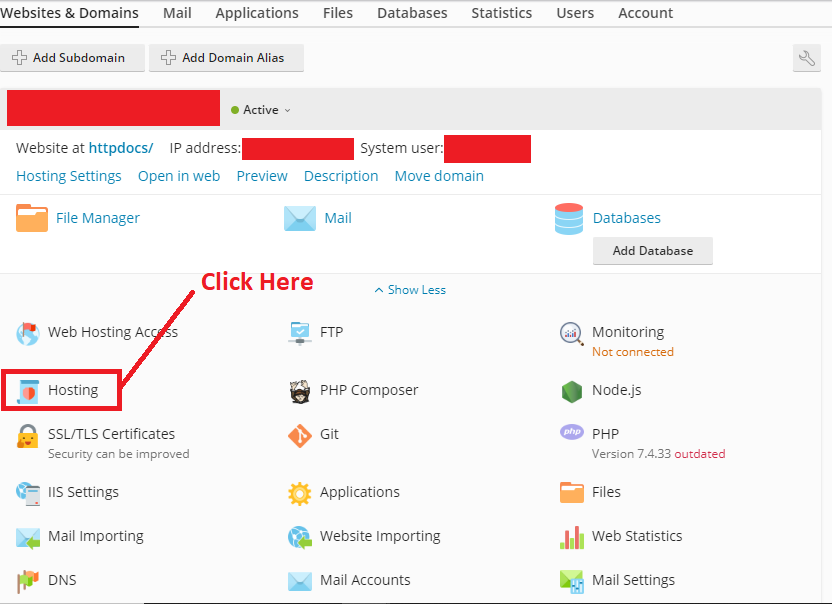
- After Successfully getting SSL for your website. Now it’s time to divert all your traffic to use https protocol instead of http. For this purpose, consider this setting in control panel. Click on “Hosting Setting” in Plesk Panel.
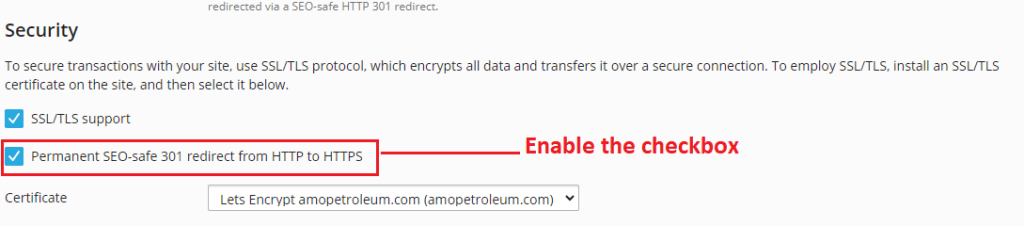
- Enable the setting Permanent SEO-safe 301 redirect from HTTP to HTTPS and select your certificate from the drop-down menu. Apply the changes.
- Click OK to implement the new settings.